 Matsubo Tech Blog
713 文字
4 分
GoogleのCloud Identityでエンドポイント管理
Cloud2022-02-03
概要
- Googleが2020年1月16日にリリースしたCloud Identityによって社内端末を管理する設定をしました。
- 事例がほとんど見つからないのでオフィシャルドキュメントを片っ端から読んで設定してみました。
- コーポレート関連の情報が全然出回らないので書いておきます。
- 手順などをちゃんと書くと、文量が大量になるので要点だけまとめます。
Cloud Identity特徴
- 無料と有料プランがあります
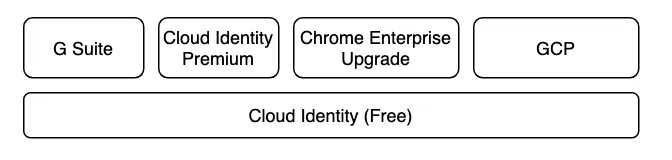
- Google Cloud Identity Free Edition
- Google Cloud Identity Premium Edition
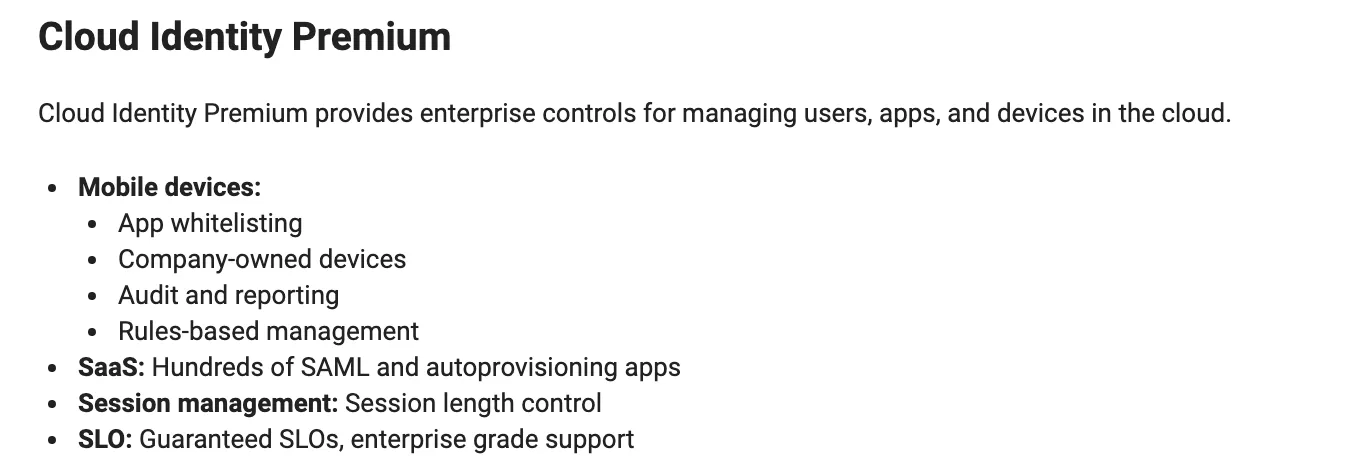
- Chrome Bookの端末管理をしたかったので今回はPremium Editionを使う必要があります。
- Google WorkspaceのEnterpriseプランだとCloud Identityのサービスが含有されているのですが、それ以外では個別に契約が必要っぽいです。
- 料金
- 645円/ユーザ/月
セキュリティ要件例
このあたりのことをやれます。
- 端末の紛失、盗難
- データの削除をリモートから行ったり、容易にログインできなくする。
- ディスクが暗号化された状態を担保する。
- 認証
- ソーシャルエンジニアリング対策
- BYO対策
- 個人端末で会社アカウントを使っている場合の管理。
- 業務委託の端末管理。
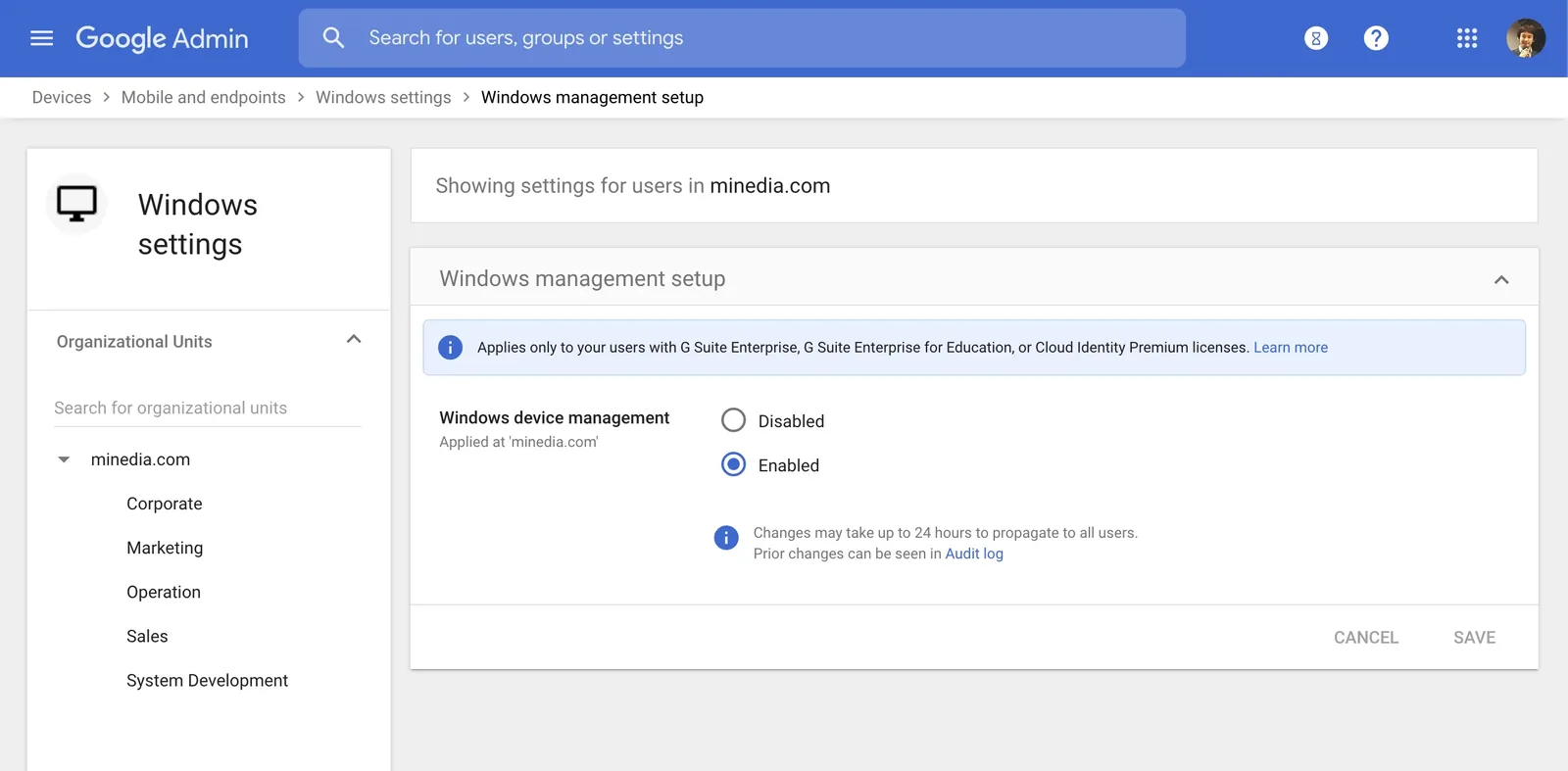
- Google Workspaceのアカウントを使ってログインしている端末は、Google Device Policyというアプリを別途入れることを共用されます。このアプリ経由で端末を制御できます。
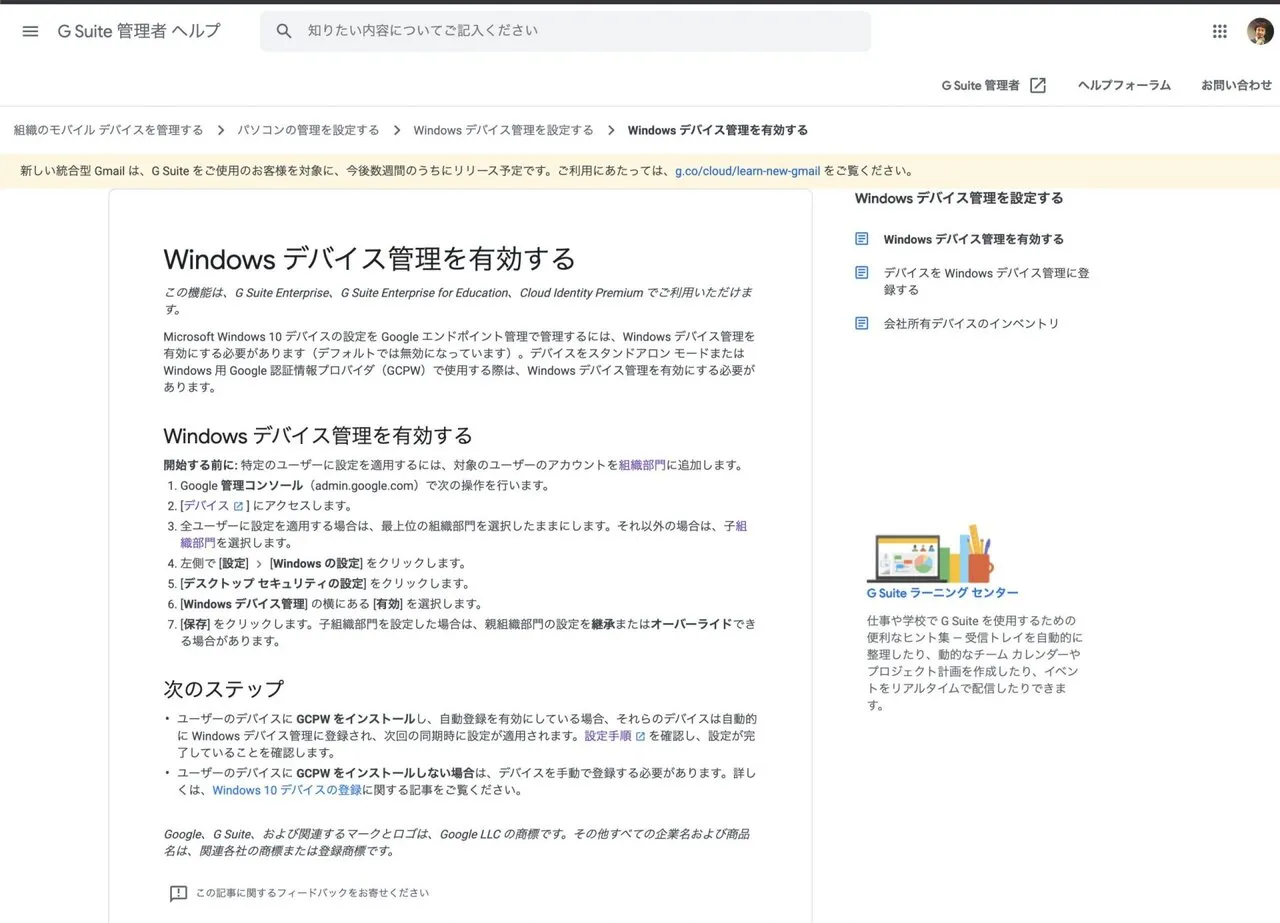
こんな感じで有効化できます。
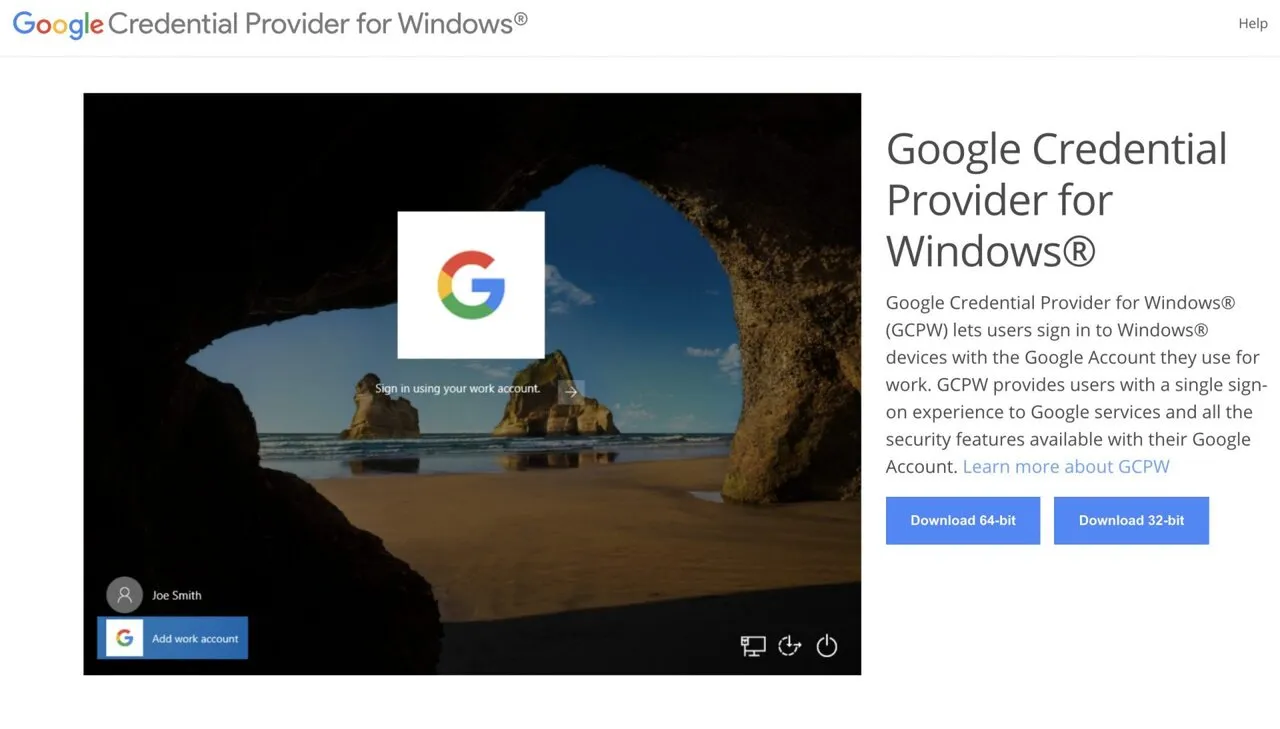
Windows端末の場合は、Google Credential Providerというアプリが用意されていて、Google WorkspaceのIDとPWでWindows端末にログインするように設定できます。
私の場合は、以下のようなPowerShellスクリプトを書いて、キッティング時に実行して設定してます。
This file contains hidden or bidirectional Unicode text that may be interpreted or compiled differently than what appears below. To review, open the file in an editor that reveals hidden Unicode characters.
Learn more about bidirectional Unicode characters
| <# このスクリプトは、https://tools.google.com/dlpage/gcpw/ から Windows 用 Google 認証情報プロバイダを | |
| ダウンロードし、インストールして設定します。 | |
| スクリプトを使用するには Windows 管理者権限が必要です。#> | |
| <# ログインを許可するドメインに次のキーを設定します。 | |
| 例: | |
| $domainsAllowedToLogin = "acme1.com,acme2.com" | |
| #> | |
| $domainsAllowedToLogin = "minedia.com" | |
| Add-Type -AssemblyName System.Drawing | |
| Add-Type -AssemblyName PresentationFramework | |
| <# 1 つ以上のドメインが設定されているかどうかを確認します #> | |
| if ($domainsAllowedToLogin.Equals('')) { | |
| $msgResult = [System.Windows.MessageBox]::Show('The list of domains cannot be empty! Please edit this script.', 'GCPW', 'OK', 'Error') | |
| exit 5 | |
| } | |
| function Is-Admin() { | |
| $admin = [bool](([System.Security.Principal.WindowsIdentity]::GetCurrent()).groups -match 'S-1-5-32-544') | |
| return $admin | |
| } | |
| <# 現在のユーザーが管理者かどうかを確認し、管理者でない場合は終了します。#> | |
| if (-not (Is-Admin)) { | |
| $result = [System.Windows.MessageBox]::Show('Please run as administrator!', 'GCPW', 'OK', 'Error') | |
| exit 5 | |
| } | |
| <# ダウンロードする GCPW ファイルを選択します。32 ビット版と 64 ビット版では名前が異なります #> | |
| $gcpwFileName = 'gcpwstandaloneenterprise.msi' | |
| if ([Environment]::Is64BitOperatingSystem) { | |
| $gcpwFileName = 'gcpwstandaloneenterprise64.msi' | |
| } | |
| <# GCPW インストーラをダウンロードします。#> | |
| $gcpwUrlPrefix = 'https://dl.google.com/credentialprovider/' | |
| $gcpwUri = $gcpwUrlPrefix + $gcpwFileName | |
| Write-Host 'Downloading GCPW from' $gcpwUri | |
| Invoke-WebRequest -Uri $gcpwUri -OutFile $gcpwFileName | |
| <# GCPW インストーラを実行し、インストールが完了するまで待ちます #> | |
| $arguments = "/i `"$gcpwFileName`"" | |
| $installProcess = (Start-Process msiexec.exe -ArgumentList $arguments -PassThru -Wait) | |
| <# インストールが成功したかどうかを確認します #> | |
| if ($installProcess.ExitCode -ne 0) { | |
| $result = [System.Windows.MessageBox]::Show('Installation failed!','GCPW', 'OK', 'Error') | |
| exit $installProcess.ExitCode | |
| } | |
| <# 許可されたドメインで必要なレジストリキーを設定します #> | |
| $registryPath = 'HKEY_LOCAL_MACHINE\Software\Google\GCPW' | |
| $name = 'domains_allowed_to_login' | |
| [microsoft.win32.registry]::SetValue($registryPath, $name, $domainsAllowedToLogin) | |
| $domains = Get-ItemPropertyValue HKLM:\Software\Google\GCPW -Name $name | |
| if ($domains -eq $domainsAllowedToLogin) { | |
| } | |
| else { | |
| $msgResult = [System.Windows.MessageBox]::Show('Could not write to registry. Configuration was not completed.', 'GCPW', 'OK', 'Error') | |
| } | |
| <# オプション設定 #> | |
| [microsoft.win32.registry]::SetValue($registryPath, 'validity_period_in_days', 1) | |
This file contains hidden or bidirectional Unicode text that may be interpreted or compiled differently than what appears below. To review, open the file in an editor that reveals hidden Unicode characters.
Learn more about bidirectional Unicode characters
| # --- 設定項目 --- | |
| $GCPW_URL = "https://gist.githubusercontent.com/matsubo/97e7d42c7bad1b5f76905c0351f71f87/raw/gcpw.ps1" | |
| $TEMP_PATH = "$env:TEMP\gcpw_installer.ps1" | |
| # 1. 管理者権限への昇格確認 | |
| if (-not ([Security.Principal.WindowsPrincipal][Security.Principal.WindowsIdentity]::GetCurrent()).IsInRole([Security.Principal.WindowsBuiltInRole]::Administrator)) { | |
| Write-Host "管理者権限で再起動しています..." -ForegroundColor Yellow | |
| Start-Process powershell.exe "-NoProfile -ExecutionPolicy Bypass -Command `"$PSCommandPath`"" -Verb RunAs | |
| exit | |
| } | |
| # 2.1. PowerShell 7 の有無を確認し、なければインストール | |
| if ($PSVersionTable.PSVersion.Major -lt 7) { | |
| Write-Host "PowerShell 7 が見つかりません。winget でインストールを開始します..." -ForegroundColor Cyan | |
| winget install --id Microsoft.Powershell --source winget --accept-source-agreements --accept-package-agreements | |
| Write-Host "PowerShell 7 のインストールが完了しました。pwsh で続行します。" -ForegroundColor Green | |
| # インストール直後はパスが通っていない場合があるため直接起動を試みる | |
| $pwshPath = "$env:ProgramFiles\PowerShell\7\pwsh.exe" | |
| Start-Process $pwshPath "-NoProfile -ExecutionPolicy Bypass -Command `"$PSCommandPath`"" -Verb RunAs | |
| exit | |
| } | |
| # 2.2. Google Chrome のインストール (既にインストール済みの場合は自動でスキップされます) | |
| Write-Host "Google Chrome をインストールしています..." -ForegroundColor Cyan | |
| winget install --id Google.Chrome --source winget --silent --accept-source-agreements --accept-package-agreements > $null | |
| # 3. スクリプトのダウンロードと「UTF-8 BOM付き」での保存 | |
| Write-Host "GCPWスクリプトをダウンロード中..." -ForegroundColor Cyan | |
| $webClient = New-Object System.Net.WebClient | |
| $content = $webClient.DownloadString($GCPW_URL) | |
| # .NETを使用して確実にBOM付きUTF-8で保存 | |
| $utf8BOM = New-Object System.Text.UTF8Encoding $True | |
| [System.IO.File]::WriteAllText($TEMP_PATH, $content, $utf8BOM) | |
| # 4. 署名なし実行を許可して実行 | |
| Write-Host "GCPWセットアップを実行します..." -ForegroundColor Yellow | |
| pwsh.exe -ExecutionPolicy Unrestricted -File $TEMP_PATH | |
| Write-Host "完了しました。ウィンドウを閉じてもOKです。" -ForegroundColor Green | |
| pause |
運用
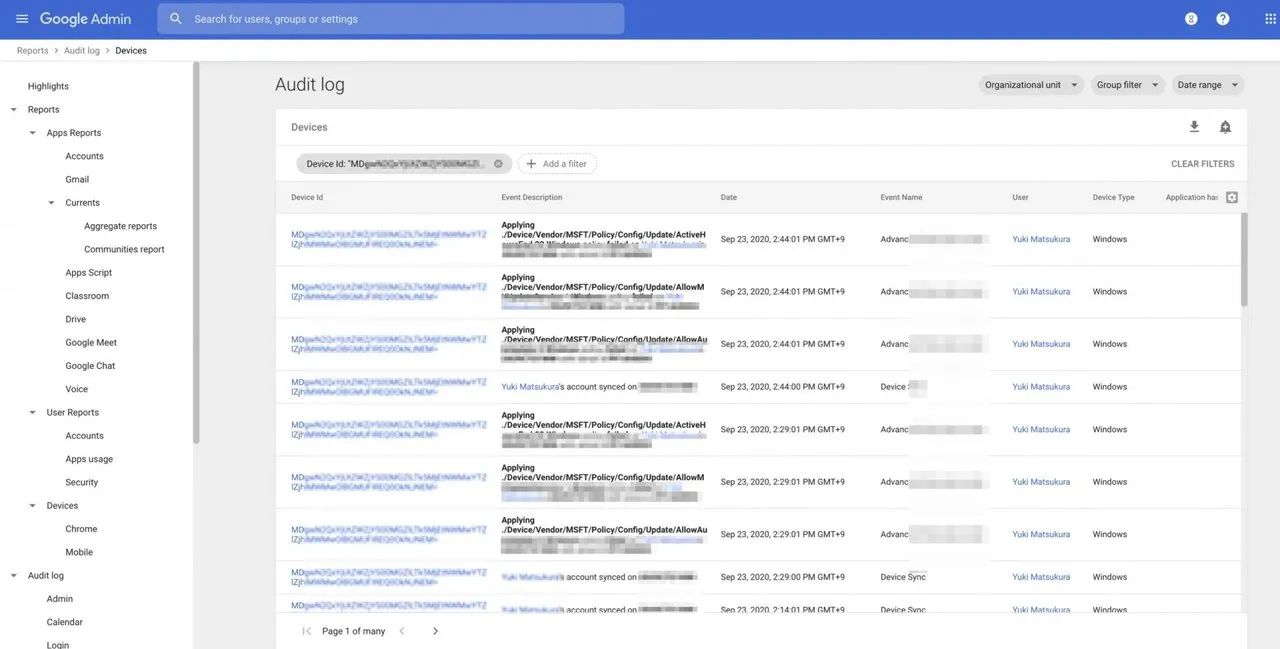
以下のスクショのような感じでログインしたユーザやデバイスが表示されます。対象のデバイスから強制ログアウトや、リモートから情報の削除を行えます。
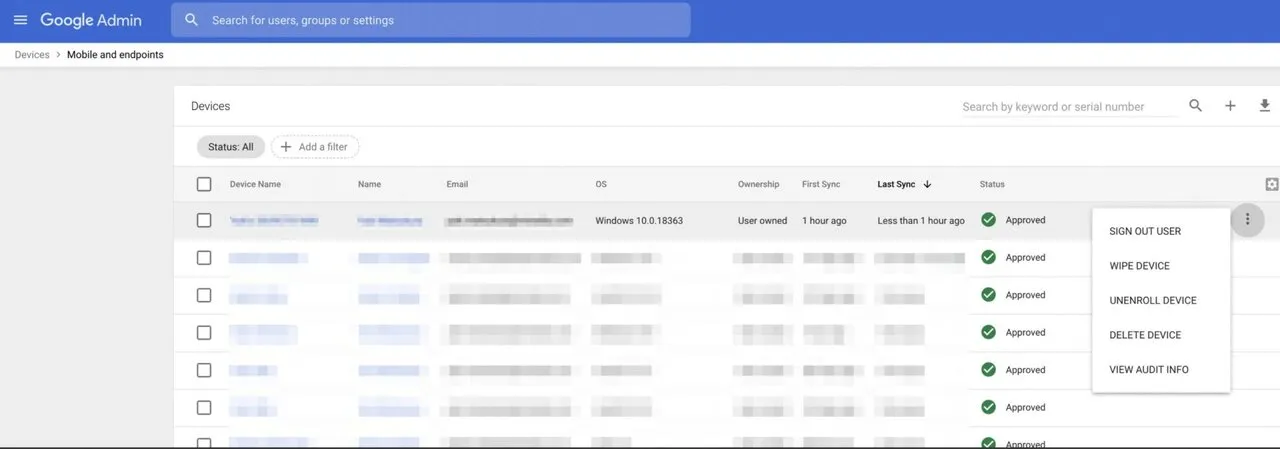
デバイスでフィルタをしたりできます。
考察
- この設定によって、会社のデバイスやBYODの端末を管理できるようになりました。セキュリティをコントロールしづらいBYODに対してもリモートワイプできるようになりました。
- Google Workspacesを導入したスタートアップには良いと思います。Android, ios, Windows, macosにおける最低限の認証管理、設定管理は行なえます。
- もっと細かい制御をしたい場合は、JAMFやIntuneなどを使って強化していけばよいかと思います。
ABM連携もできるようなので、今後トライしたいです。
https://support.google.com/a/answer/9904735?hl=ja

CloudGoogle Workspace Business
関連記事
この記事が役に立ったら
GitHub Sponsorsで応援できます